
BOARD MEMBER REPORTS ACCESS -STEP BY STEP!
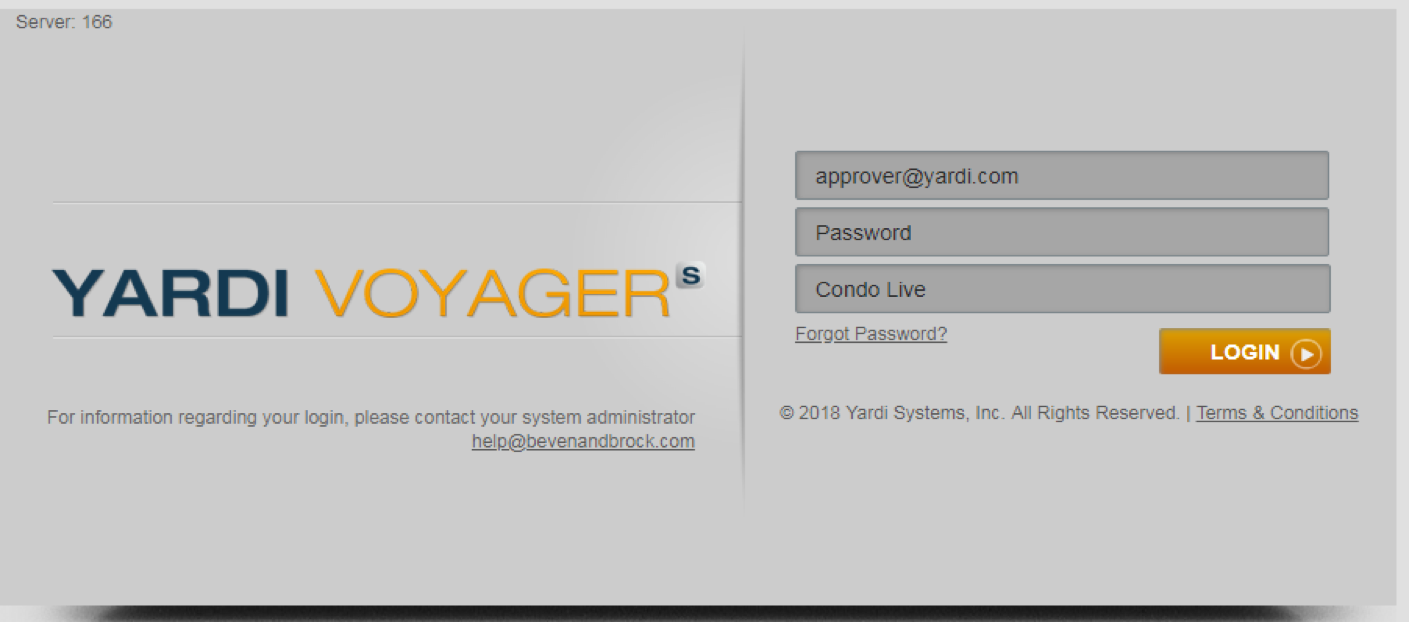
First Line: Your email address
Second Line: Welcome123! (first time only-system will require a change)
Third Line: Condo Live
Reports
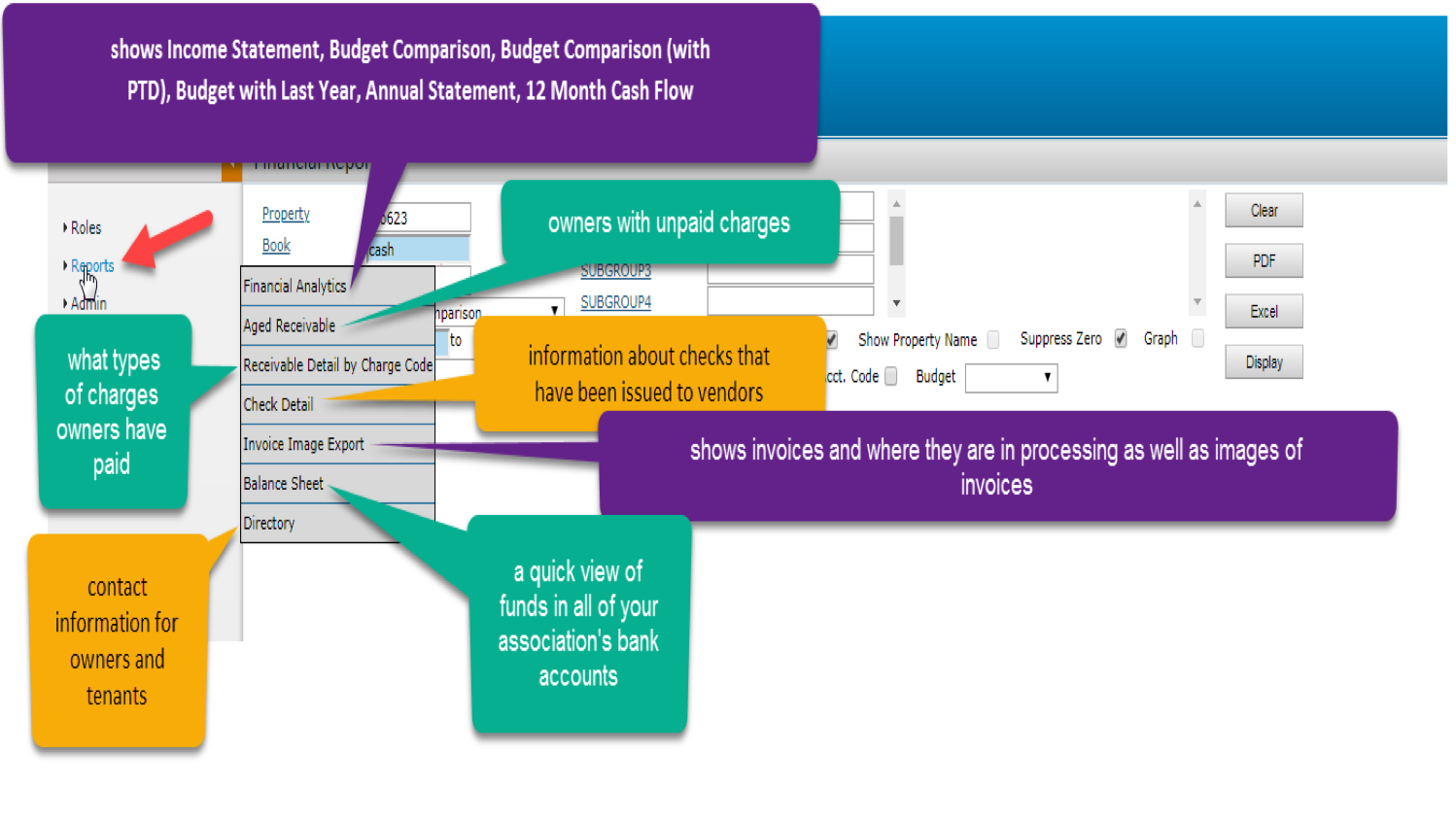
For additional information about various financial reports please see http://www.bevenandbrock.com/financialstatementhelp.pdf
Financial Analytics
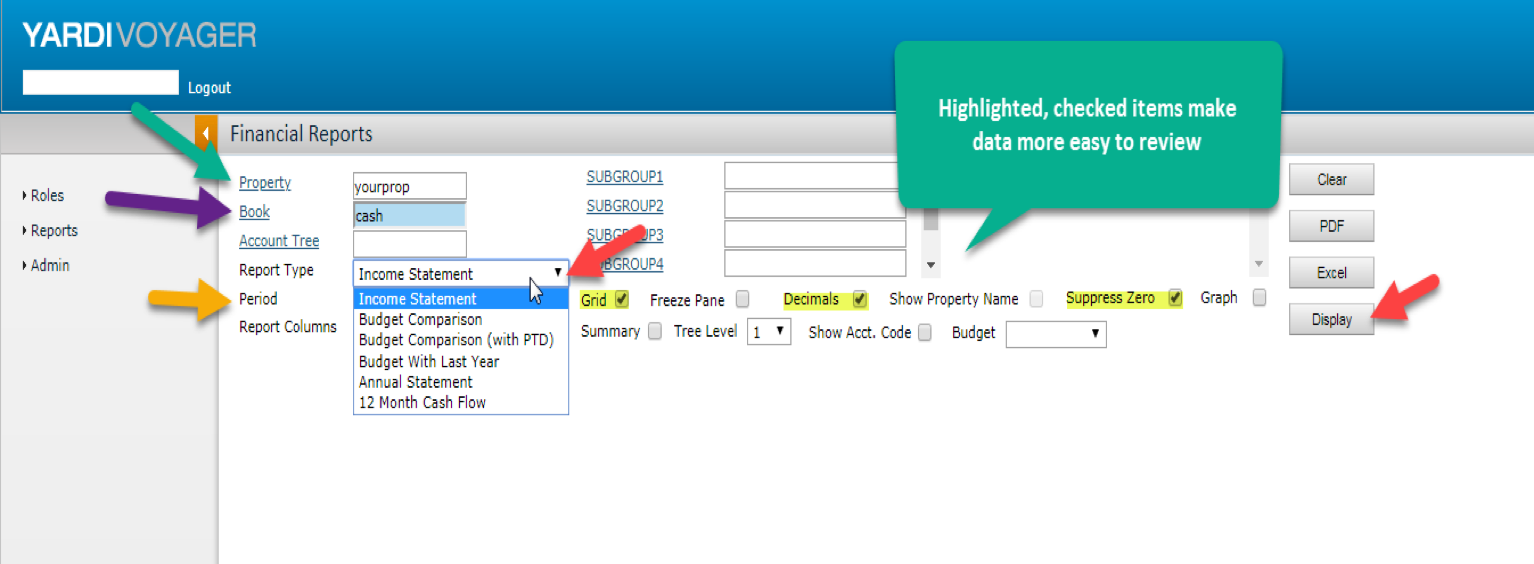
There are six reports available in the Financial Analytics area.
To access Financial Analytics various reports:
- click Property, select your property
- click Book, select cash
- click drop down menu for Report Type, select desired report
- enter desired time frame for Period
Helpful additional selections: check grid, decimals, and suppress zero. You can also export the report to a PDF or Excel.
- click display to show the report
Aged Receivable
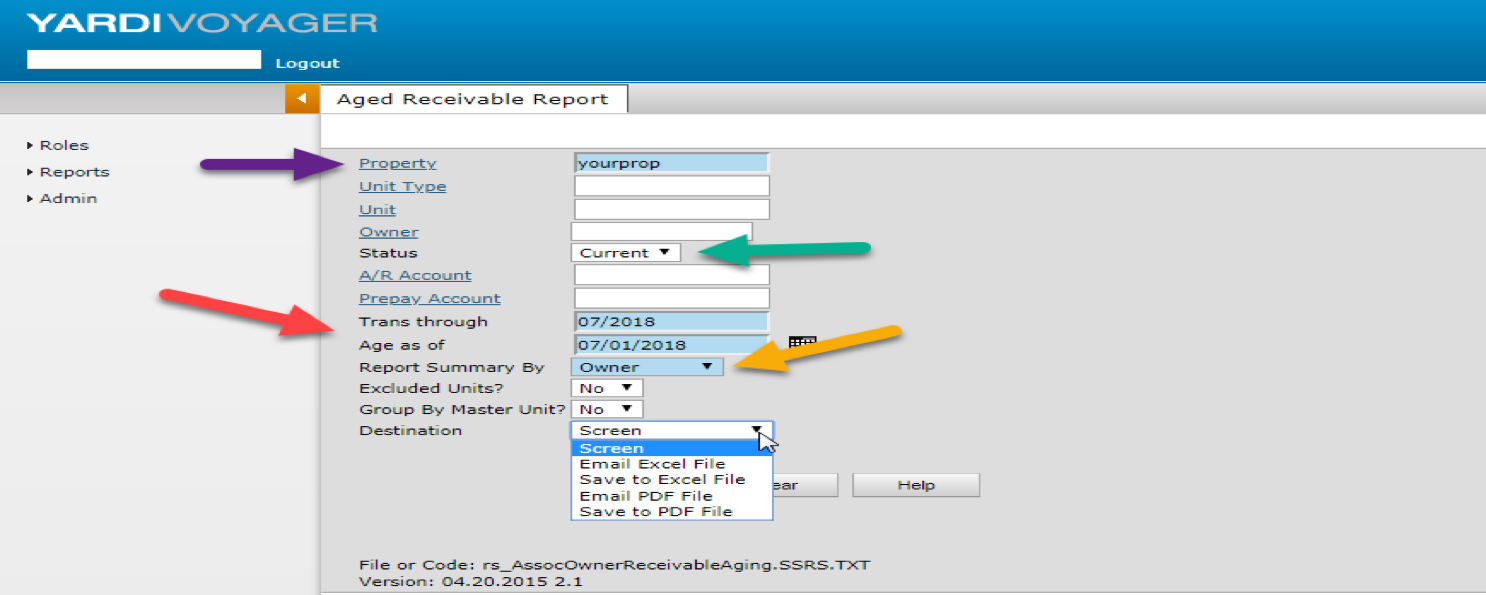
To access the Aged Receivable:
- click property, select your property
- click status drop down menu, select current
- select a date for the Transactions through and Age as of fields
- select Report Summary By owner from the drop down menu
- set Exclude Units? and Group By Master Units? to no
- select desired destination from the drop down menu
- click Submit to show the report
Receivable Detail by Charge Code
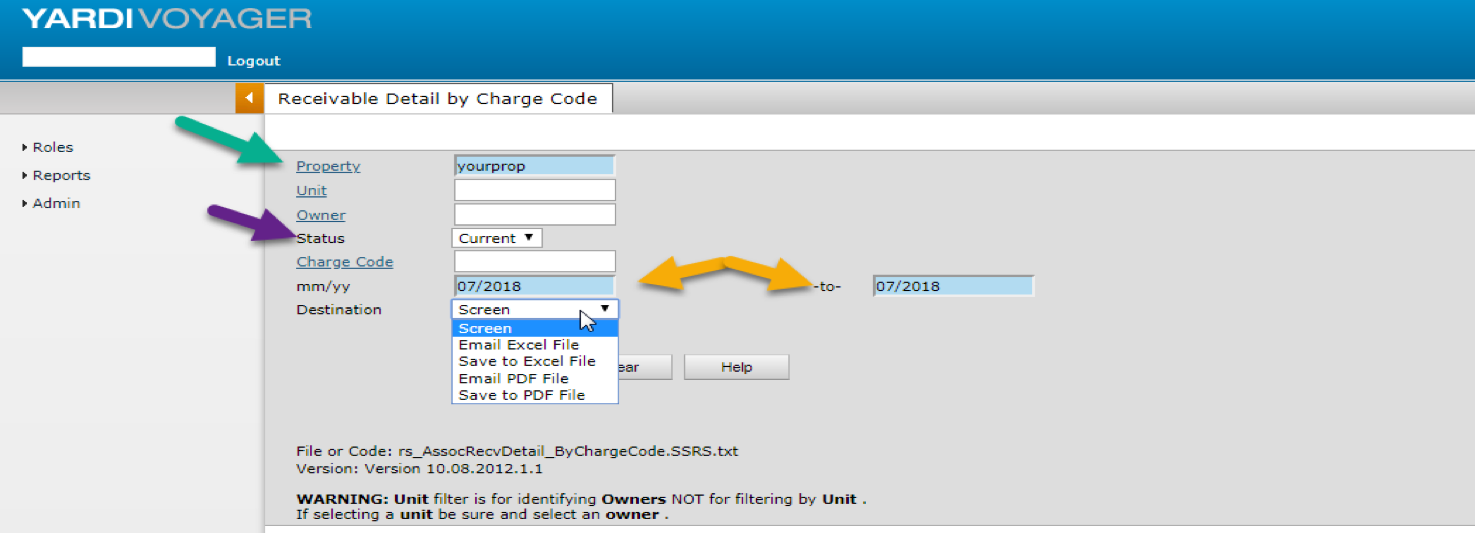
To access the Receivable Detail by Charge Code:
- click property, select your property
- click status drop down menu, select current
- enter the time frame you would like to review in the mm/yy fields
- select desired destination from the drop down menu
Helpful additional selections: select a specific unit or owner by clicking on those underlined blue words or select a charge code for a particular charge like dues, special assessment, or fines by clicking on that field
- click Submit to show the report
Check Detail
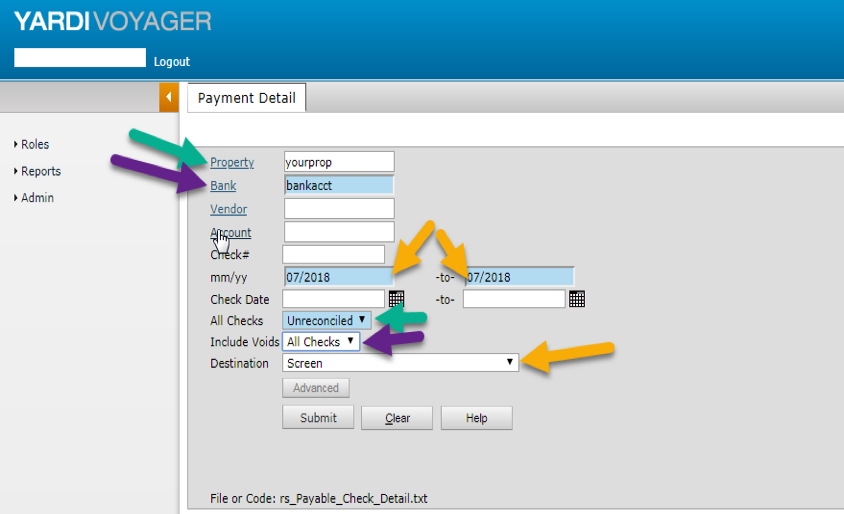
To access the Check Detail:
- click property, select your property
- click bank, select the bank account you wish to review
- enter the time frame you would like to review in the mm/yy fields
- click the All Checks and Include Voids drop down menus, select the desired choice
- select desired destination from the drop down menu
- click Submit to show the report
Helpful additional selections: Once the report is on screen, clicking on the blue payable number will lead to the payable invoice. The payable invoice shows vendor information, payment status, and under the images tab, a scanned picture of the invoice from the vendor can be reviewed.
Invoice Image Export
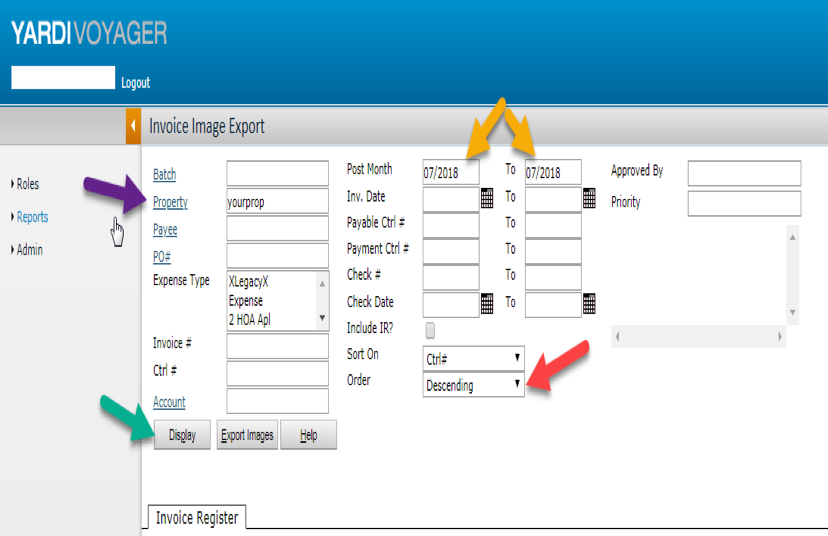
To access the Invoice Image Export:
- click property, select your property
- enter the time frame you would like to review in the Post Month or Inv. Date fields (optional)
- click the order drop down menu, select Descending
- click Display
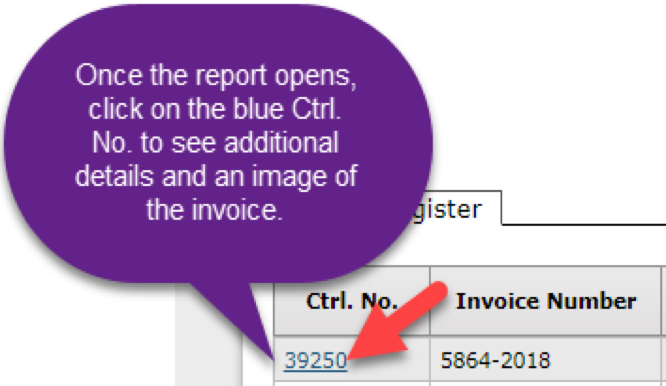
Helpful additional selections: Once the report is on screen clicking on the blue Ctrl. No. number will lead to the invoice register. The invoice register shows vendor information, payment status, and under the images tab, a scanned picture of the invoice from the vendor can be reviewed.
Balance Sheet
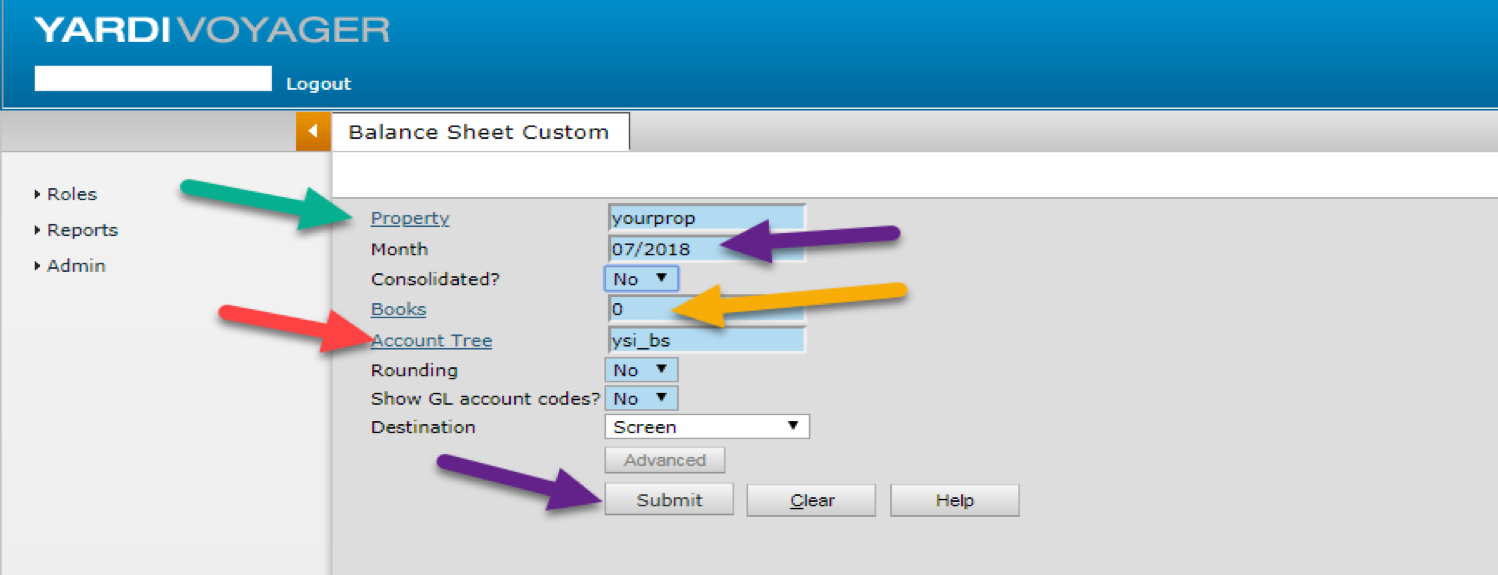
To access the Balance Sheet:
- click property, select your property
- enter the month you would like to review in the Month field
- click the Consolidated? drop down menu, select no
- enter 0 in the Books field
- enter ysi_bs in the Account Tree field
- click the Rounding and Show GL account codes? drop down menus, select no
- select desired Destination from the drop down menu
- click Submit to show the report
Directory
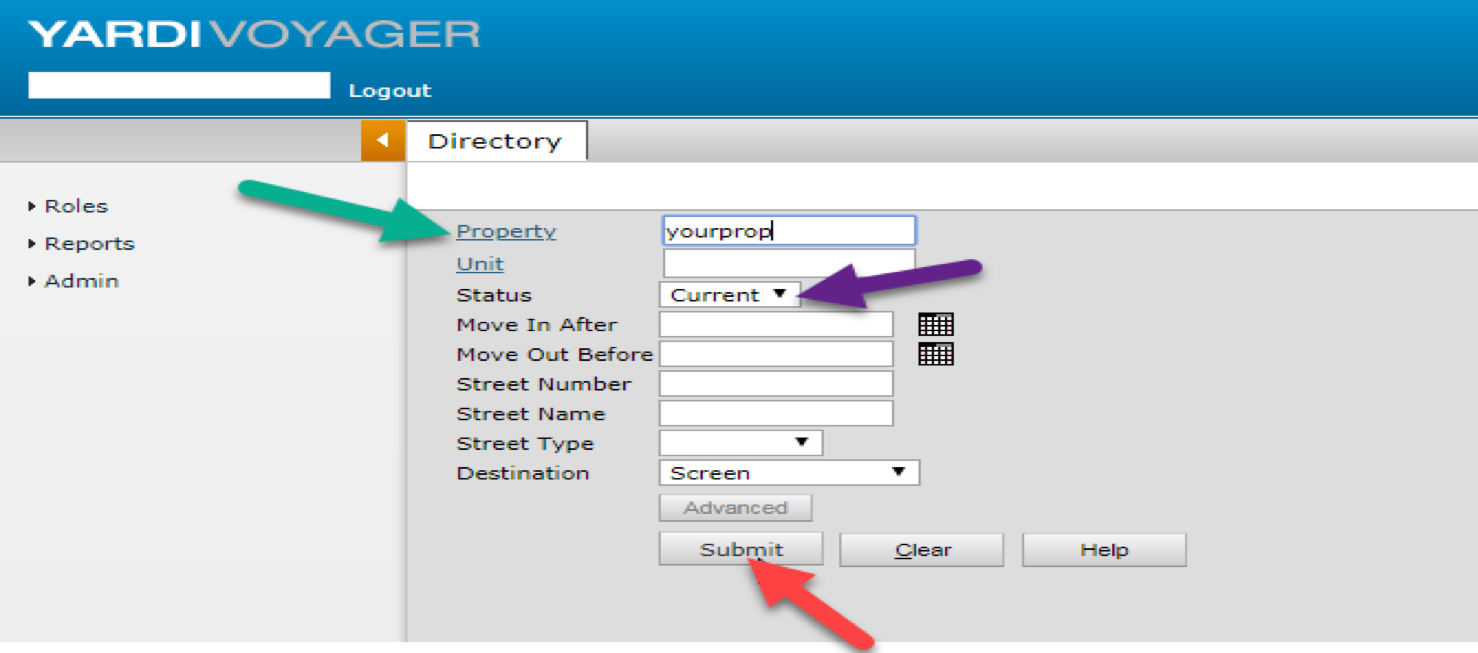
To access the Directory:
- click property, select your property
- click the Status drop down menu, select current to review current owners
Helpful additional selections: To review just one particular unit, click Unit, select the desired unit from list, and click ok.